
Plugins
Aeon Lingua: get started
Install Aeon Lingua, add a key for an AI service, choose languages and run the first translation.
Last updated 16 November 2026
This guide takes you from installation to a first translated page. During early access we go through it together with you.
1. Install the plugin
Upload and activate Aeon Lingua like any other plugin. Check the requirements first:
- WordPress 6.6 and PHP 8.2 or later, with
mbstring. - Write access to
wp-content/mu-pluginsandwp-content/uploads.
With WooCommerce, the background jobs run in Action Scheduler. Without WooCommerce, they run in WP-Cron.
2. Add a key
Lingua reads the key from wp-config.php or from an environment variable. It never stores the key in the database. The constant is named AEON_LINGUA_<SERVICE>_KEY. For Google Gemini it looks like this:
define( 'AEON_LINGUA_GEMINI_KEY', '...' );
Then open Aeon Lingua › Settings and choose the service under Service. A few services need more:
- Google Cloud Translation needs a project ID, which has its own field.
- An OpenAI-compatible service needs its address. It must start with
https://.
Test the connection in Settings before you go on. The Overview tab shows which services have a key: Key set or No key.
3. Set a budget
Each service has a budget in characters:
| Setting | Default |
|---|---|
| Max characters per day | 300,000 |
| Max characters per month | 3,000,000 |
A budget of 0 stops the jobs. It does not mean unlimited. The Usage box on the Overview tab shows today’s and this month’s use.
4. Choose languages
Add the languages in Settings. They come from WordPress’s own language list, and there is no fixed limit on how many you can add.
Choose how the language appears in the address: Subdirectory, Subdomain or Own domain. Then choose whether addresses are written In Latin letters or In the language’s own script. See Addresses.
On a new installation, existing content gets translated addresses automatically.
5. Run the first translation
On the Overview tab:
- Under Find new strings on a page, enter an address on the translated site, for example
https://example.com/en/, and click Scan page. The page is read anonymously and new strings are queued. - Under Translate missing strings, click Start translating. Missing strings are sent to the selected service in the background.
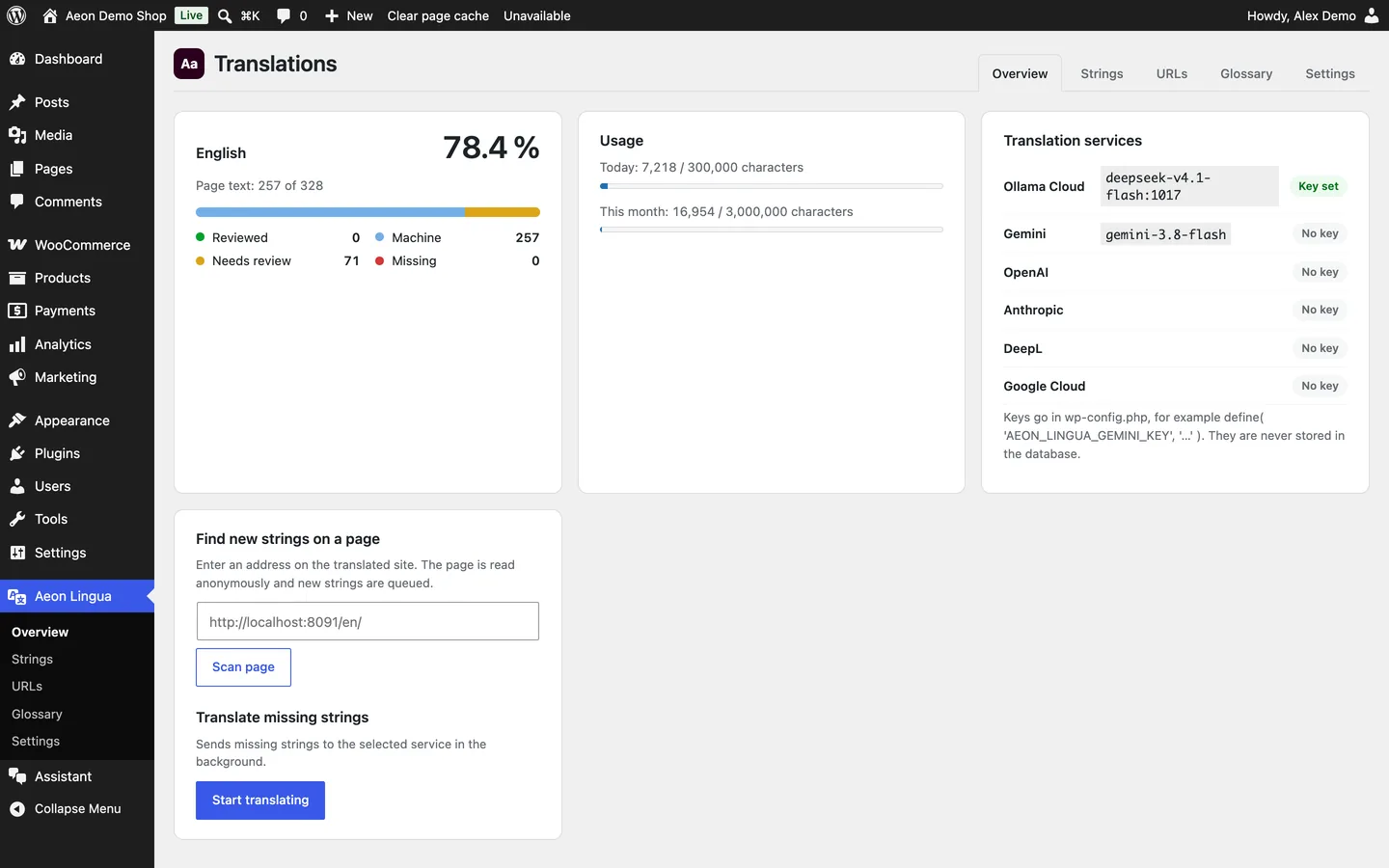
Each round sends at most 40 strings and 6,000 characters. Larger sites are translated over several rounds. Once a day, Lingua also goes through pages, products and categories by itself and finds new strings.
From the command line:
wp aeon-lingua discover --page=https://example.com/en/
wp aeon-lingua translate
wp aeon-lingua stats
6. Check the result
Open the translated site. Translations are stored on your site, so visitors never wait for the AI.
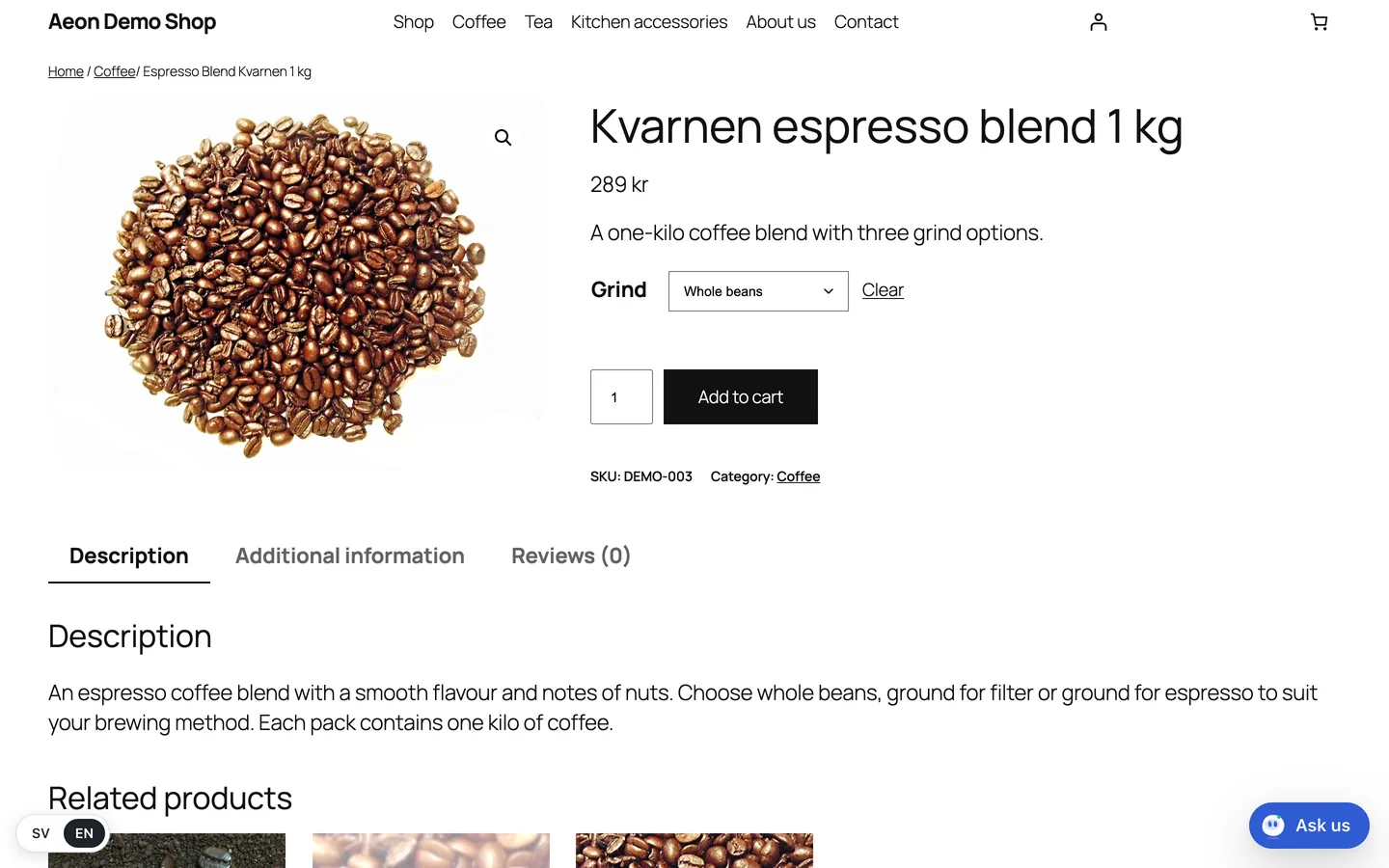
Then go through the most important texts under Review strings, and add brand names to the Glossary.
Leave parts untranslated
In Settings you can keep things in the original language:
- Do not translate these parts of the page: simple CSS selectors.
- Show these URLs in the default language only:
/path,/path/or/path/*. - Text domains and extra attributes.