
Platform
Article editor field map
A practical map of the active field groups that supplement the WordPress article editor.
Last updated 28 August 2026
Use this guide when preparing an article for publication. The fields below are the active additions to the standard WordPress article editor. They are optional unless your editorial process says otherwise; leaving a field empty uses the article’s normal presentation.
Before the field groups
First complete the standard article information: headline, standfirst, body, featured image, category, author, status and publication time. The field groups below refine how that article is presented. They do not replace the WordPress controls that save a draft, schedule it or publish it.
Visibility and editorial placement
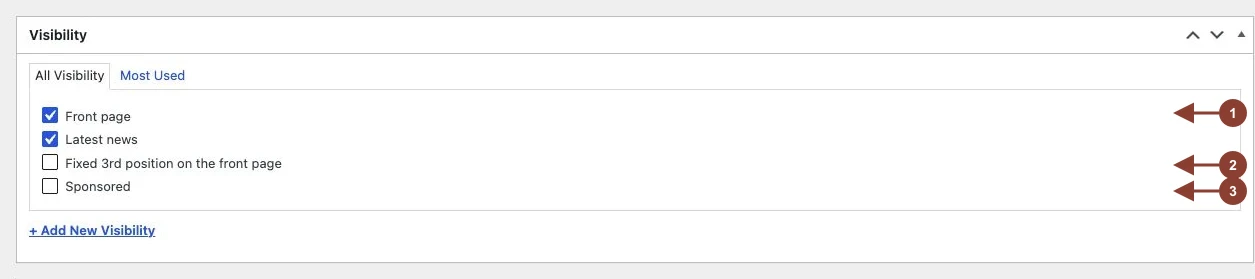
Visibility terms control where the article participates in the newspaper flow. Front page includes it in the main editorial feed, Latest news includes it in the chronological news list, Fixed 3rd position on the front page reserves a persistent commercial or editorial slot, and Sponsored identifies content that needs the platform’s sponsored treatment. Apply only the terms required by the publication’s desk routine.
Featured image settings
| Field | What to enter | When to use it | Dependencies and checks |
|---|---|---|---|
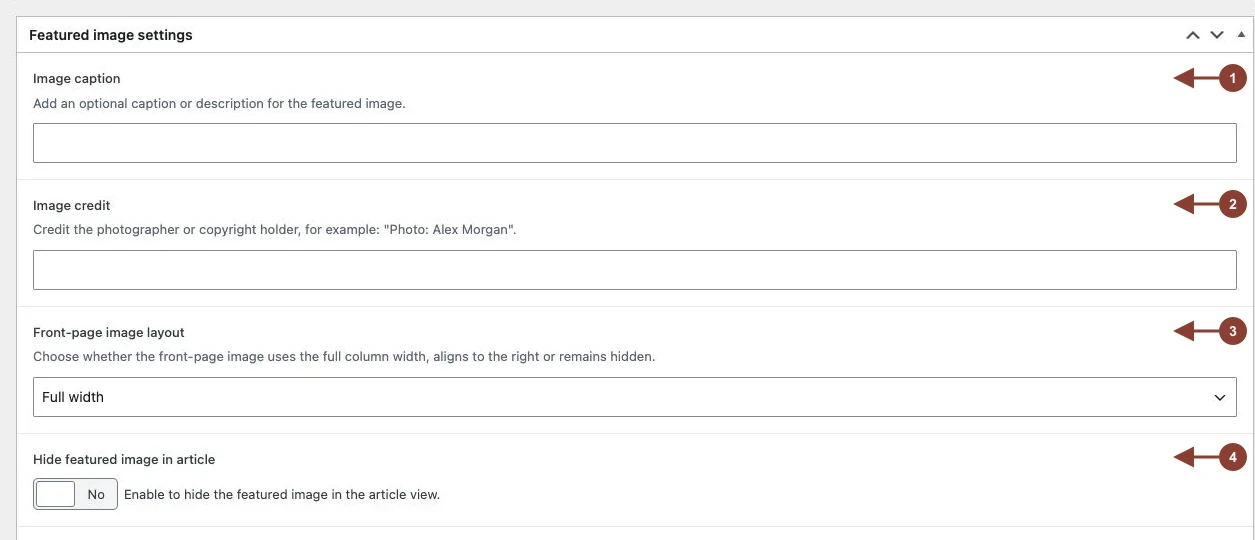
| Image caption | A concise description or caption for the featured image. | When the image needs context beyond its media-library information. | Check that it accurately describes the published image. |
| Image credit | The approved photographer, agency or rights-holder credit. | Whenever newsroom policy requires a credit. | This field is available only when Video or gallery is empty. Check spelling and the agreed credit format before publishing. |
| Front-page image layout | Select full width, right aligned, no image, columnist only, or full width plus columnist. | When the standard front-page card does not suit the article’s editorial weight or format. | The columnist options require an appropriate columnist portrait on the main author. Preview the front page after changing the selection. |
| Hide featured image in article | Turn on to remove the featured image from the article view. | When the article should retain its featured image for other placements but not show it at the top of the article. | Available only when Video or gallery is empty. This is separate from Front-page image layout. |
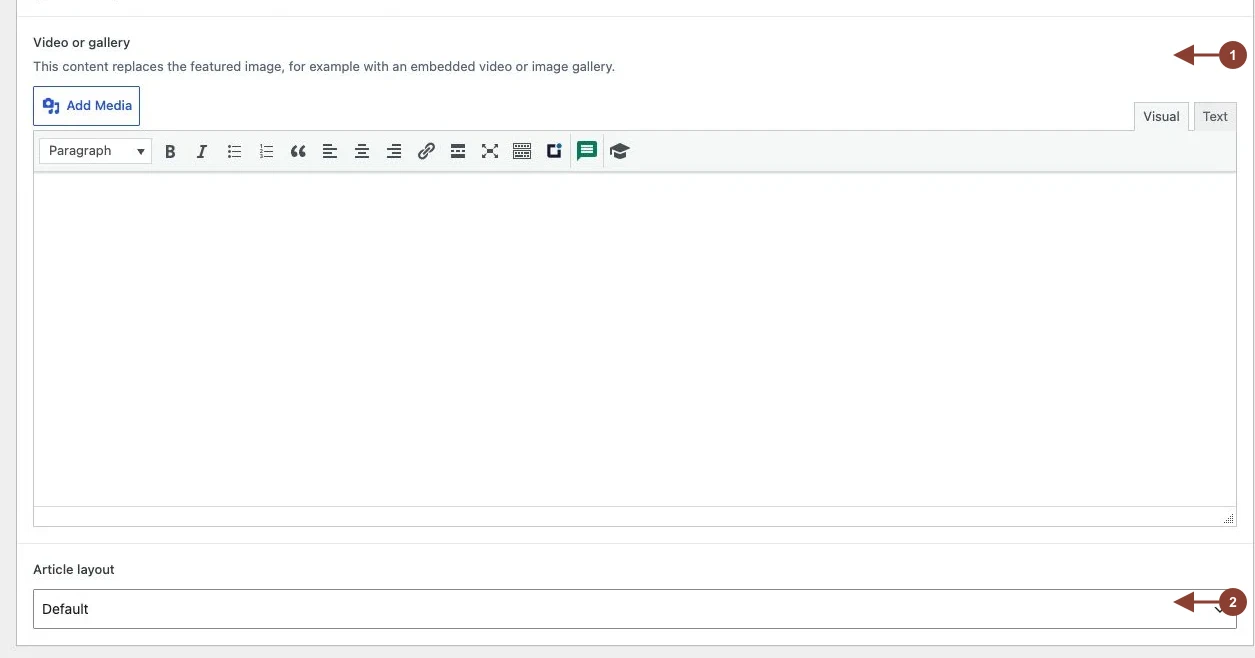
| Video or gallery | An approved video or gallery embed. | When moving media should occupy the article’s lead-media position. | It replaces the article’s featured image in that position. While it contains content, Image credit and Hide featured image in article are not available. Test the published preview. |
| Article layout | Choose Default or Full width. | When a feature needs a wider article presentation. | Review the article on desktop and mobile before publishing. |
Other settings
| Field | What to enter | When to use it | Dependencies and checks |
|---|---|---|---|
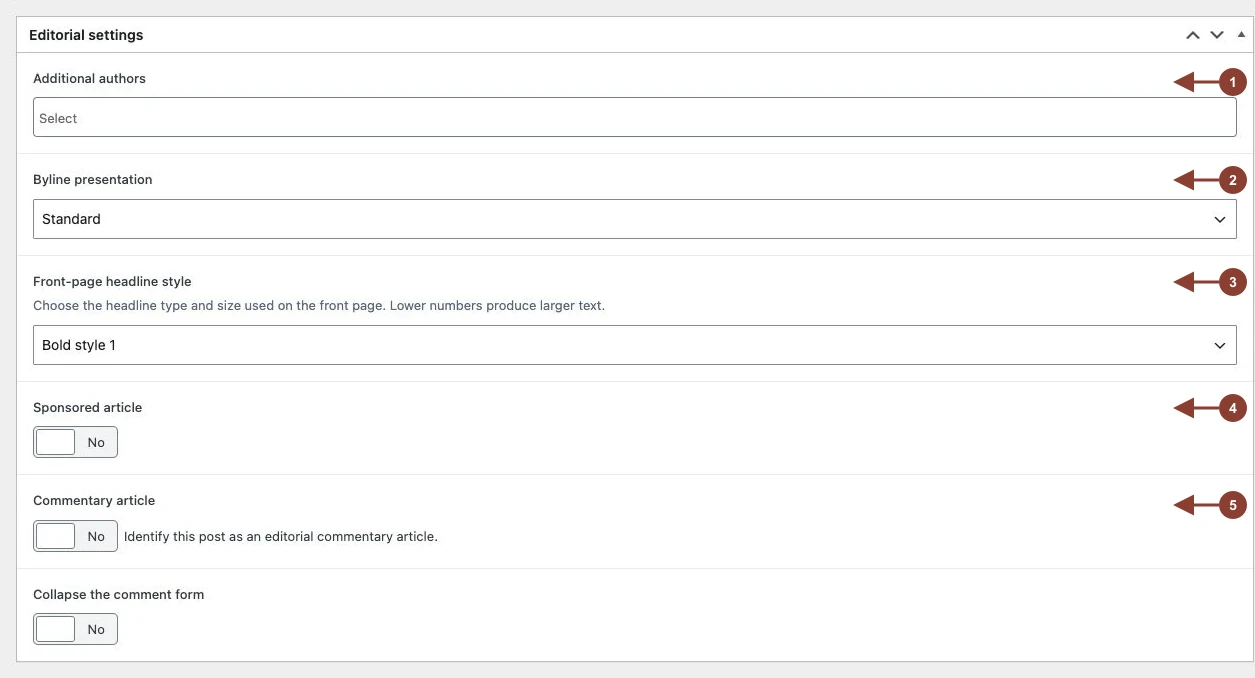
| Additional authors | Select the reporting colleagues who should appear alongside the main author. | For a jointly reported article. | Confirm the byline order and each contributor’s profile before publication. |
| Byline presentation | Select Standard, Column or Hidden. | When the article’s byline needs a different presentation. | Use the format agreed for the article type; preview the article after selecting Column or Hidden. |
| Front-page headline style | Select one of the available bold or editorial headline styles. | When editorial hierarchy calls for a specific headline treatment in the main front-page column. | Lower-numbered styles are larger. Use the newsroom’s agreed hierarchy and preview the front page. |
| Sponsored article | Turn on for approved sponsored or native content. | Only after the commercial/editorial designation has been approved. | The article receives sponsored treatment and some surrounding article modules may change. Check labelling and the complete reader-facing view. |
| Commentary article | Turn on for an article that should be identified as commentary. | For the editorial commentary format, not for reader comments. | It adds the commentary marker in relevant listings and uses the site’s opinion-disclaimer treatment. It does not control whether readers can comment. |
| Collapse the comment form | Turn on to keep the comment area collapsed behind its opening control. | When comments should remain available without appearing open immediately. | It applies only where reader comments are open and enabled for the site. It does not close commenting on the article. |
Article additions
| Field | What to enter | When to use it | Dependencies and checks |
|---|---|---|---|
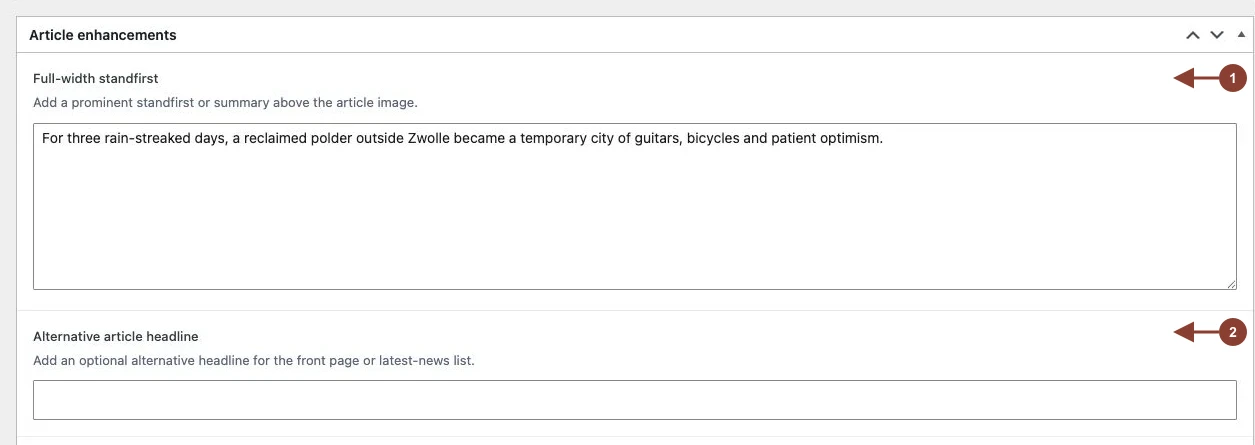
| Full-width introduction | A prominent introductory paragraph. | For features, investigations, interviews or other articles needing a stronger opening above the lead media. | Keep it distinct from the regular standfirst and confirm both in preview. |
| Alternative article headline | A shorter or differently arranged headline with the same meaning as the main headline. | When a front-page, ticker or compact listing needs a better-fitting headline. | It is used in supported listings when present. It must not introduce a new claim or change the article’s editorial promise. |
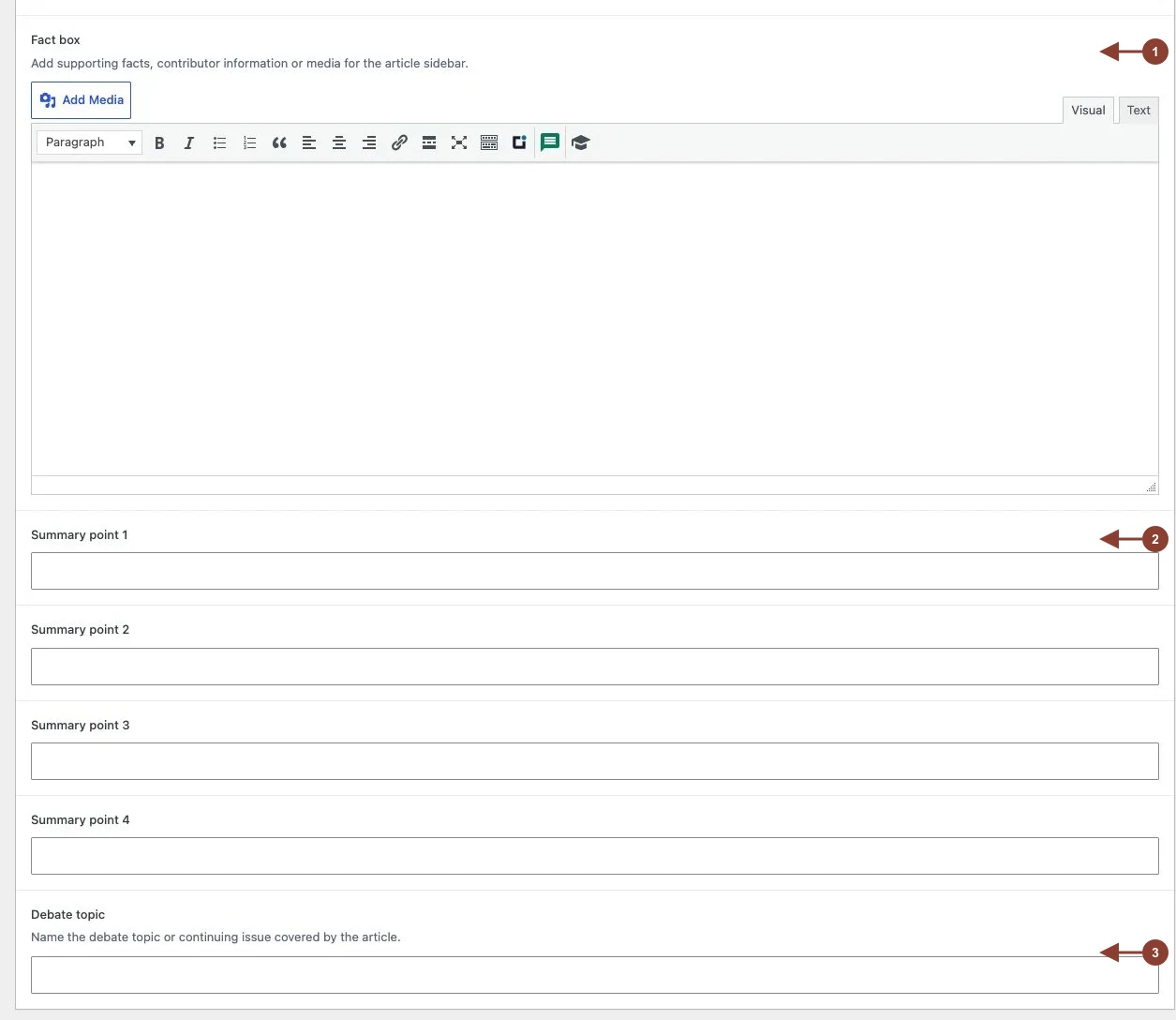
| Information box | Supporting facts, context, a timeline, links or a brief contributor note; it can include media. | When useful material would interrupt the main article narrative. | Keep it concise, attributed and relevant. Review its placement in the article preview. |
| Summary point 1-4 | One verified key point per field. | When readers benefit from a quick overview of a longer or multi-part article. | Fill the points in order without gaps: publication stops at the first empty point. |
| Debate subject | A specific label for the debate topic. | For debate articles when the editorial routine requires a more precise subject than the article category. | It supplements, rather than replaces, correct category selection. |
Internal notes
Custom notes are for editorial working notes that must not be visible to readers. Do not enter passwords, protected-source information, personal data or any material that does not belong in the WordPress database.
Publication control
Use the WordPress publish panel to decide whether the article remains a draft, is sent for review, is scheduled or is published. Before the final action:
- Preview the article and its front-page context after changing presentation fields.
- Confirm image rights, credits, captions and embeds.
- Check that alternative headlines, summary points, authors and commentary or sponsored labels match the editorial decision.
- Confirm the category, author and publication time, then use the appropriate WordPress status.
Changing a field after publication can change the reader-facing article or listing. Preview the revised result before saving an important update.